
Chances are someone in your business already uses Claude. They signed up with a work email, pay for it on a personal card, and paste in client documents to get through the week faster. It works, until that person leaves and takes the chats, the files and the know-how with them. A deliberate Claude setup for business keeps the time savings and puts the company back in control of the account, the data and the knowledge your team builds up.
This guide covers the plan to choose, the settings to switch on before anyone is invited, how to organise shared knowledge, and how to build agents the whole team can use.
Key takeaways
- The Claude Team plan covers most small businesses, including single sign-on and admin controls. Enterprise suits businesses that need audit logs, automatic user provisioning and group-based permissions, often because a compliance or security framework requires them.
- Write your AI policy first. Its rules decide which tools, data and connections you allow.
- Lock down sign-in and devices before you invite staff, not after.
- Shared Projects hold your team’s knowledge; skills and plugins turn your best processes into agents anyone can use.
- Change plugin publishing to “Requires review” so nothing reaches the whole team unchecked.
Why a deliberate Claude setup for business beats ad hoc sign-ups
Personal accounts are the fastest way to start and the hardest to manage. The business has no contract covering how its data is handled, no way to remove access when someone leaves, and no view of what has been shared. We cover the difference in detail in Claude for business: personal plans vs business plans.
A business plan fixes that. Anthropic’s Commercial Terms state that it “may not train models on Customer Content”, and the admin console gives you one place to add people, remove them and keep their work. The time savings stay, because the tool your team already likes stays. Picture ten staff who each spend 15 minutes a day hunting for the right template, price list or past proposal. That is two and a half hours a day across the team, and a shared Project with those documents in it gives most of that time back.
Choose the plan: why Team covers most small businesses
A common belief is that you need Enterprise to manage a team. You do not. According to Anthropic’s pricing page, the Team plan suits 2 to 150 people and includes single sign-on (staff log in with the Microsoft 365 account they already have), central billing and administration, admin controls for connectors (the links that let Claude reach systems such as Microsoft 365), organisation-wide skills and shared Projects.
| Team | Enterprise | |
|---|---|---|
| Team size | 2 to 150 seats | Large organisations, and businesses that must show audit trails and group-based access for compliance |
| Cost per person | $34 a month on annual billing, $43 monthly (Standard seat, GST inclusive) | US$20 a month plus usage, billed annually |
| Single sign-on with Microsoft 365 | Yes | Yes |
| Shared Projects, skills and plugins | Yes | Yes, plus targeting by group |
| Automatic user provisioning and audit logs | No | Yes |
| Take over staff accounts already on your domain | No | Yes |
Prices change, so check the current figure before you buy. Premium seats cost $170 a month on annual billing and give five times the usage of a Standard seat, so buy them only for your heaviest users. Enterprise also suits smaller businesses that work under a compliance or security framework, such as ISO 27001, SOC 2 or a client’s security schedule. If an auditor will ask who used Claude, what they shared and who could see it, you need Enterprise’s audit logs. If access has to follow your departments or teams, you need its group-based permissions and role controls. It also lets you move staff off personal accounts in one step. For the wider comparison with Copilot, see Microsoft Copilot vs Claude for Australian business.
Start with your AI policy
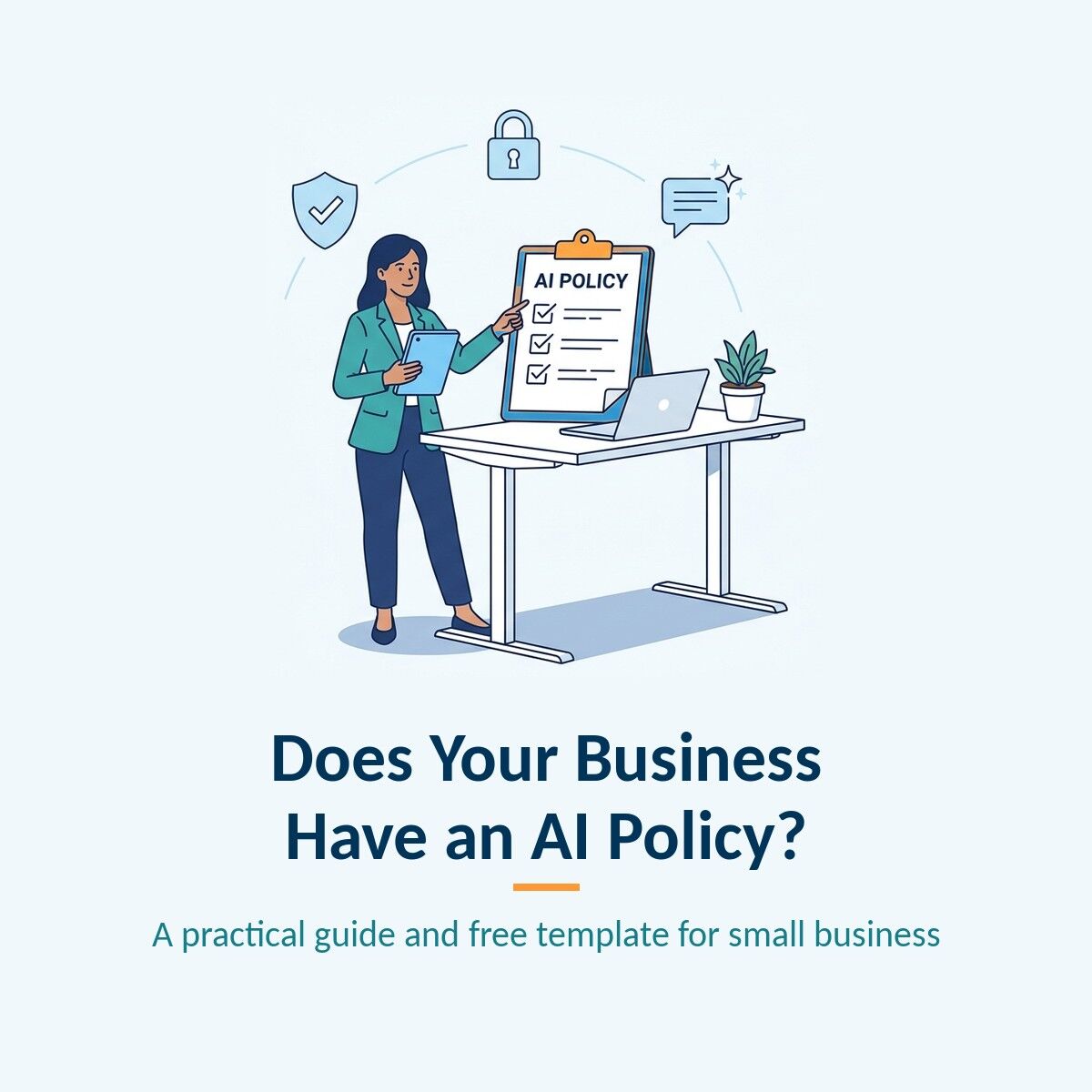
Before anyone touches the admin console, agree the rules. Our free AI policy template, explained in AI policy for small business, turns into setup decisions almost line by line:
- Approved tools only, on a business subscription (clauses 6.1 to 6.4). Claude Team is the subscription; personal accounts are out.
- An AI register (section 7). Record what Claude is used for, which connectors are on, and who owns each shared Project.
- What information can go in (section 8). This table decides what may be uploaded to Projects and which systems you connect.
- Check every output (clause 10.1). Claude drafts; a person stays accountable.
The Office of the Australian Information Commissioner’s guidance on privacy and commercially available AI products is the reference point for the personal information rules.
Lock down access before you invite anyone
The template’s implementation appendix sets out the controls behind the policy, and each one maps to a Claude setting:
- Verify your domain and switch on single sign-on, so staff sign in with their Microsoft 365 account. Anthropic’s single sign-on guide covers the steps. Disabling someone’s Microsoft account then removes their Claude access at the same moment.
- Block new personal accounts on your company domain, an option that appears once the domain is verified.
- Allow Claude, block other AI tools on company devices with web filtering and app controls, as we describe in how to block unapproved AI tools.
- Allow sign-in from managed devices only, a Microsoft 365 setting, so company information never lands on a personal laptop.
- Review users every quarter against your staff list.
Knowledge management with Claude Projects
A Project is a shared workspace with its own documents and standing instructions. Everyone who uses it gets answers from the same approved material instead of whatever they remember to paste in.
- One purpose per Project, such as “proposal writing” or “HR policy questions”.
- A small, current set of documents. A few accurate files beat a large pile that contradicts itself.
- Clear instructions: who the Project serves, the tone, and to say so when the documents do not cover a question.
- An owner who replaces documents when a policy or price changes.
Projects can stay private or be shared with the whole organisation, with each person given view or edit rights. For live documents, the Microsoft 365 connector lets Claude search SharePoint, OneDrive, Outlook and Teams. It is read-only by default and, in Anthropic’s words, “mirrors each user’s existing Microsoft 365 permissions”, so nobody sees a file through Claude they could not already open.
Managing your team on the Team plan
Owners control the settings that matter. Turn on only the connectors your policy approves, and set each connector action to always allowed, needs approval or blocked. Decide whether staff can create and share their own skills. Check seat use and the user list each quarter, and move people between Standard and Premium seats as their usage shows.
Build shareable agents your whole team can use
In Claude, an “agent” your team can share comes in three sizes:
- A shared Project. The simplest agent: approved documents plus instructions, ready for anyone you invite.
- A skill. A packaged procedure, such as “write a quote in our format” or “summarise a contract against our checklist”. Owners can provision skills for the whole organisation.
- A plugin. A bundle of skills and connectors that handles a full job, such as onboarding a new client.
Staff can share a skill or plugin with named colleagues, or publish it to the organisation library. On the Team plan, publishing is open by default, so change it to “Requires review” and let an owner approve what reaches everyone. Connector sign-ins are never shared, so each person connects with their own account and keeps their own permissions. For agents that need to act inside your systems, see custom AI agents: Microsoft vs Claude.
Rolling out your Claude setup across the business in 30 days
This plan gets a Claude setup for business live in a month without rushing the controls.
- Week 1: adopt the AI policy, buy Team seats, verify the domain and switch on single sign-on.
- Week 2: apply the device and web filtering controls, approve two or three connectors, and set publishing to “Requires review”.
- Week 3: build one shared Project for one team and test it on real work.
- Week 4: brief all staff, invite them, and turn the team’s best prompt into a skill.
Risks to manage in a business Claude setup
Most of the risk sits in the gaps, not the tool. Shared Projects go stale if nobody owns them, so name an owner. Open publishing lets an untested plugin reach everyone, so keep review on. Staff may still use personal accounts on their own devices, which is why the device and filtering controls matter. And Claude can be confidently wrong, so the “check every output” rule stays in force.
Common questions about Claude setup for business
No. Team includes single sign-on, admin controls, shared Projects and organisation-wide skills. Consider Enterprise when a compliance or security framework means you need audit logs, group-based permissions, automatic user provisioning or custom data retention.
On Team, staff can move their own personal accounts across, but the business cannot force it. Enterprise can migrate accounts on your domain. Either way, your policy should say personal accounts are not used for work.
No. The Microsoft 365 connector acts as the signed-in person and only sees what they can already access.
Not by default on a business plan. Anthropic’s Commercial Terms state it may not train models on customer content, and the Team plan lists no model training on your content by default.
The policy owner named in your AI policy, with your IT provider handling sign-in, devices and connectors.
How Empower IT can help
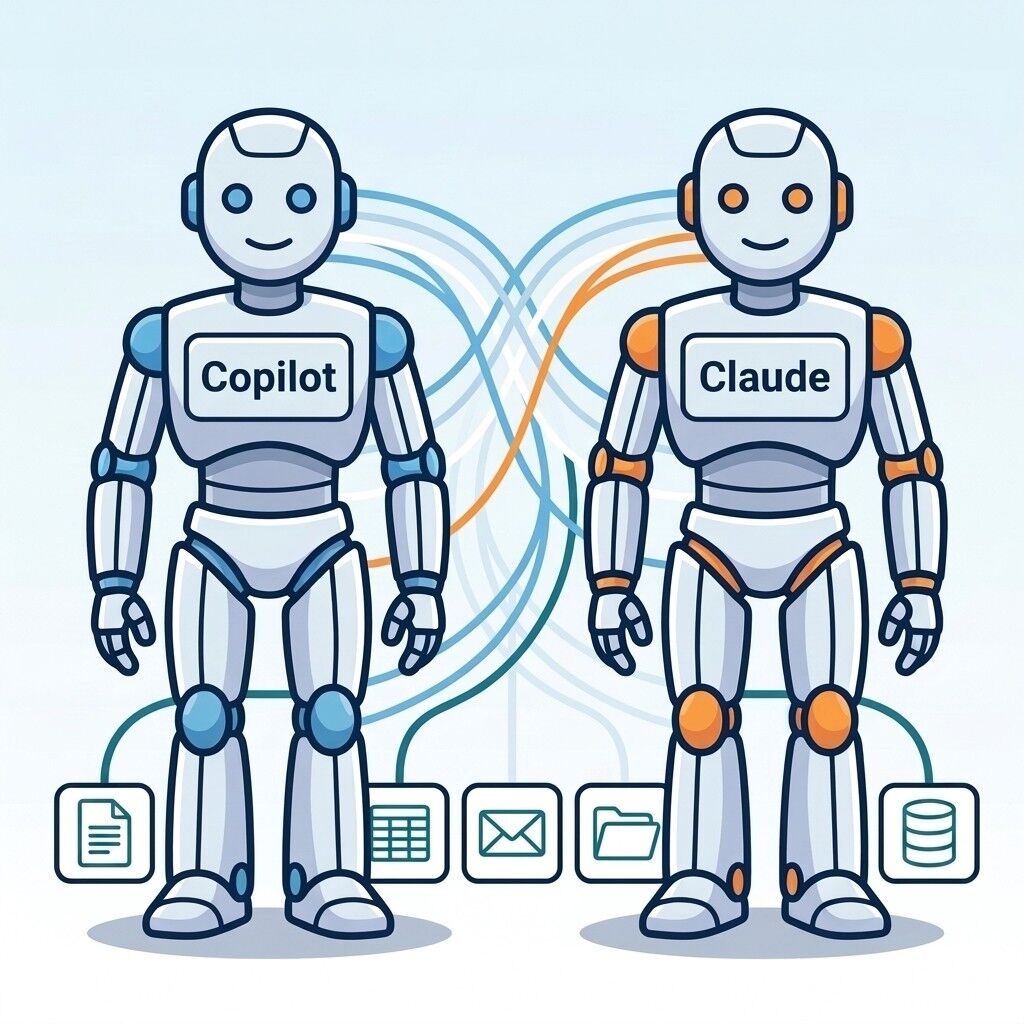
Empower IT sets up Claude for Australian businesses, as well as Microsoft 365 Copilot, so we can recommend the right fit for your team rather than one product. We start with your AI policy, then configure your Claude setup for business to match it.
- Choose the plan and seat mix, and set up billing on a business subscription
- Connect single sign-on with Microsoft 365 and block personal accounts on your domain
- Lock AI access to approved platforms and managed devices
- Build your first shared Projects, skills and plugins with review switched on
- Brief your staff and keep user lists current as part of our managed IT services
Last updated
SHARE
In this article:
- Key takeaways
- Why a deliberate Claude setup for business beats ad hoc sign-ups
- Choose the plan: why Team covers most small businesses
- Start with your AI policy
- Lock down access before you invite anyone
- Knowledge management with Claude Projects
- Managing your team on the Team plan
- Build shareable agents your whole team can use
- Rolling out your Claude setup across the business in 30 days
- Risks to manage in a business Claude setup
- Common questions about Claude setup for business
- How Empower IT can help